Once you’ve created your activities, designed your form, and set up your payments, the final step is to publish and share your booking form so customers can start booking instantly.
Your booking form link is unique to your club and can be shared anywhere — on your website, social media, or via direct messages.
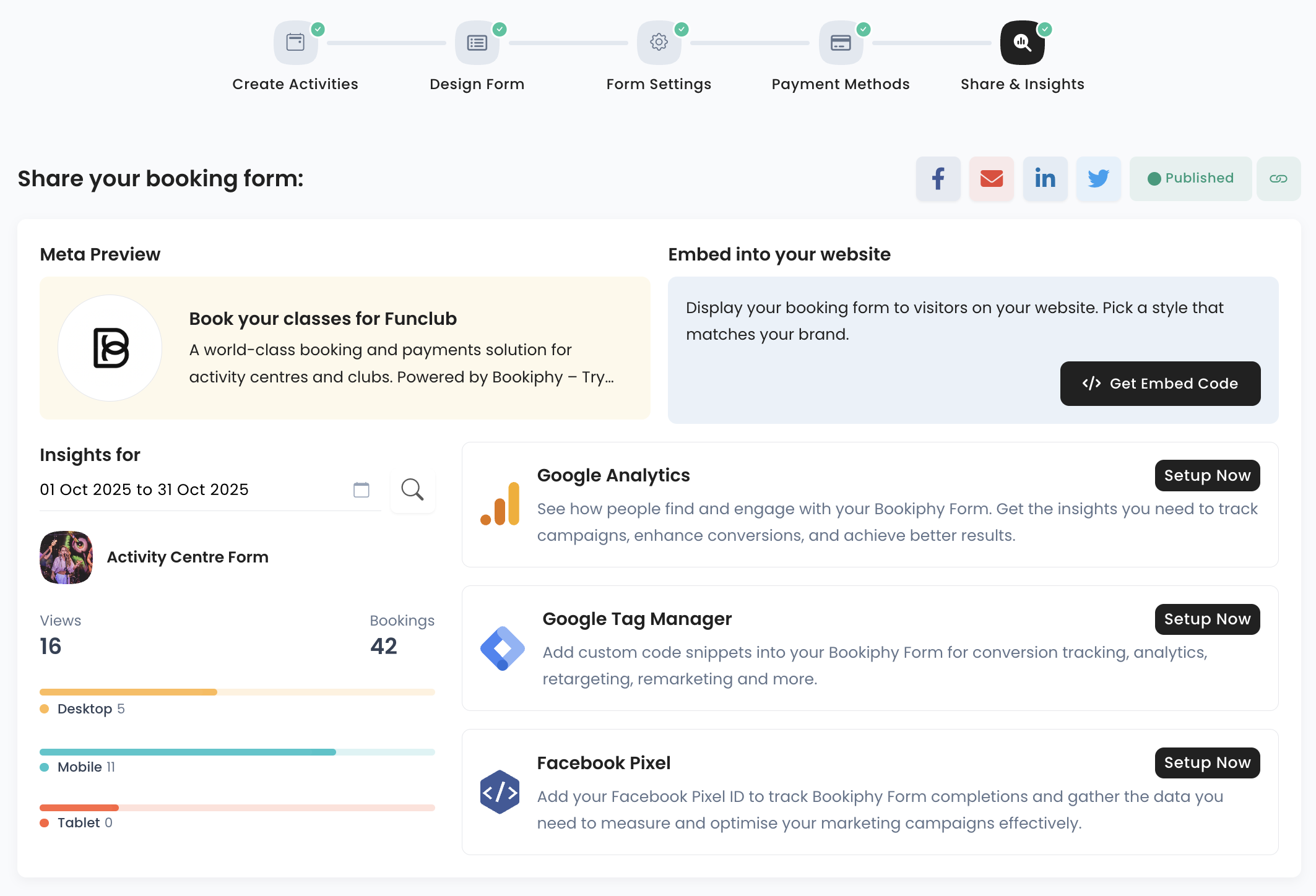
Step 1: Go to the “Share & Insights” Page
From your Bookiphy setup flow, head to the final step:
Create Activities → Design Form → Form Settings → Payment Methods → Share & Insights
This page is where you:
Publish your form so it’s live and visible to customers
Update your meta title and description for showing up on search engines such as Google or Bing
Copy and share your booking link
Enable Advanced Analytics
Embed to Website
Step 2: Publish Your Booking Form
If your form isn’t live yet, click the Publish button on the top right.
Once published, you’ll see a green “Published” status confirming it’s active.
- Published forms are instantly available for customers to view and book.
- Unpublished forms remain private and hidden from customers.

Step 3: Update Your Meta Title and Description
Your Meta Preview shows how your booking page appears when shared on social media or search engines. To ensure more reachability and higher visibility for your unique booking form link, we recommend that you update the meta description and title for your form.
Under Meta Preview, click to edit your title and description.
Add a short, engaging summary — for example:
Title: “Book your classes for Funclub”
Description: “A world-class booking and payments solution for activity clubs. Powered by Bookiphy.”
Your preview updates instantly as you type.
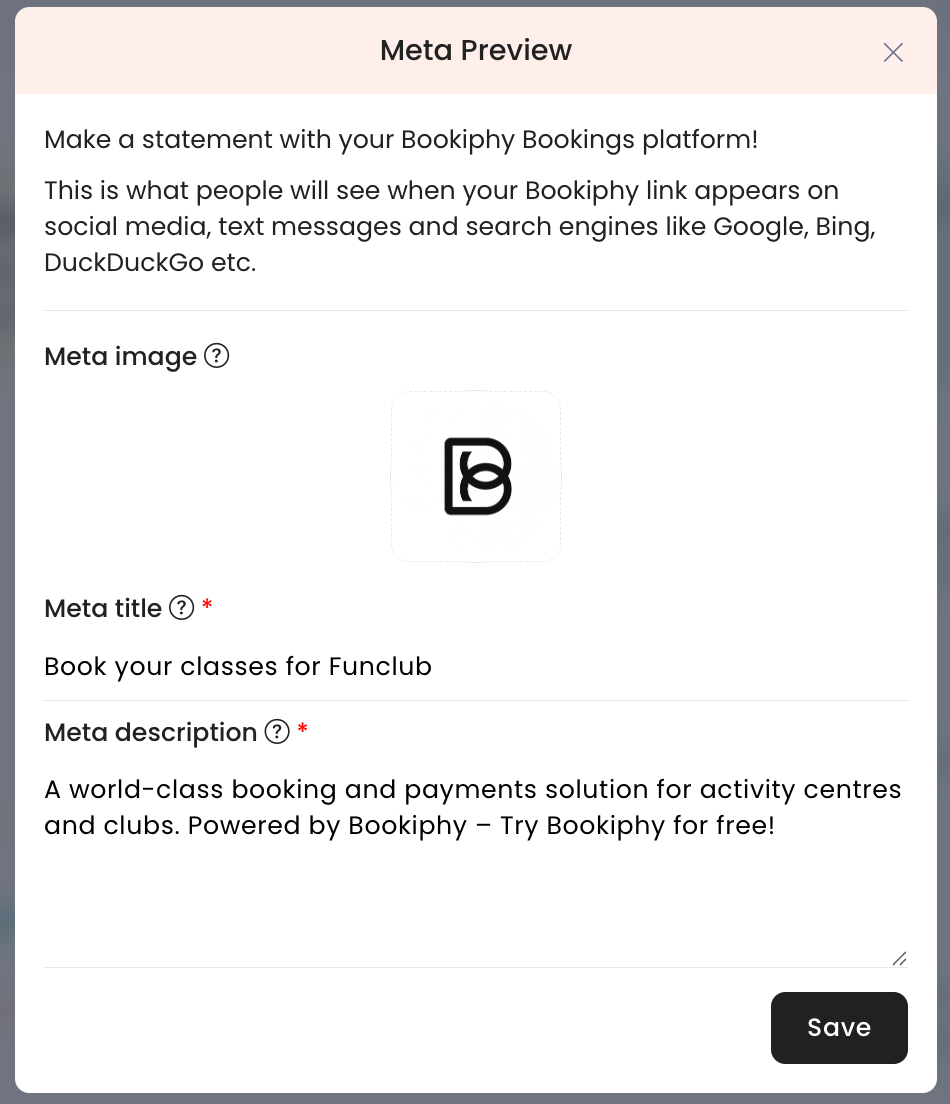
Tip: A meta description is a short summary that your customers will see next to your link when you share it. Indexing lets search engines, such as Google, Bing, etc know about your booking form. Use clear and friendly language that reflects your club’s tone and offerings — it helps improve visibility when shared online.
Was this article helpful?
That’s Great!
Thank you for your feedback
Sorry! We couldn't be helpful
Thank you for your feedback
Feedback sent
We appreciate your effort and will try to fix the article